 Instruction Manual Maker
Assembly manuals, straight from the model.
Export your assembly from SolidWorks, drop it into Instruction Manual Maker, and lay out every step with exploded views, numbered balloons and a bill of materials that stays in sync. Then export it as a PDF, a video or an interactive web page, all from your own PC.
Windows desktop app · SolidWorks 2020 or later · Your files stay on your PC · 30 days free with just an email, no card
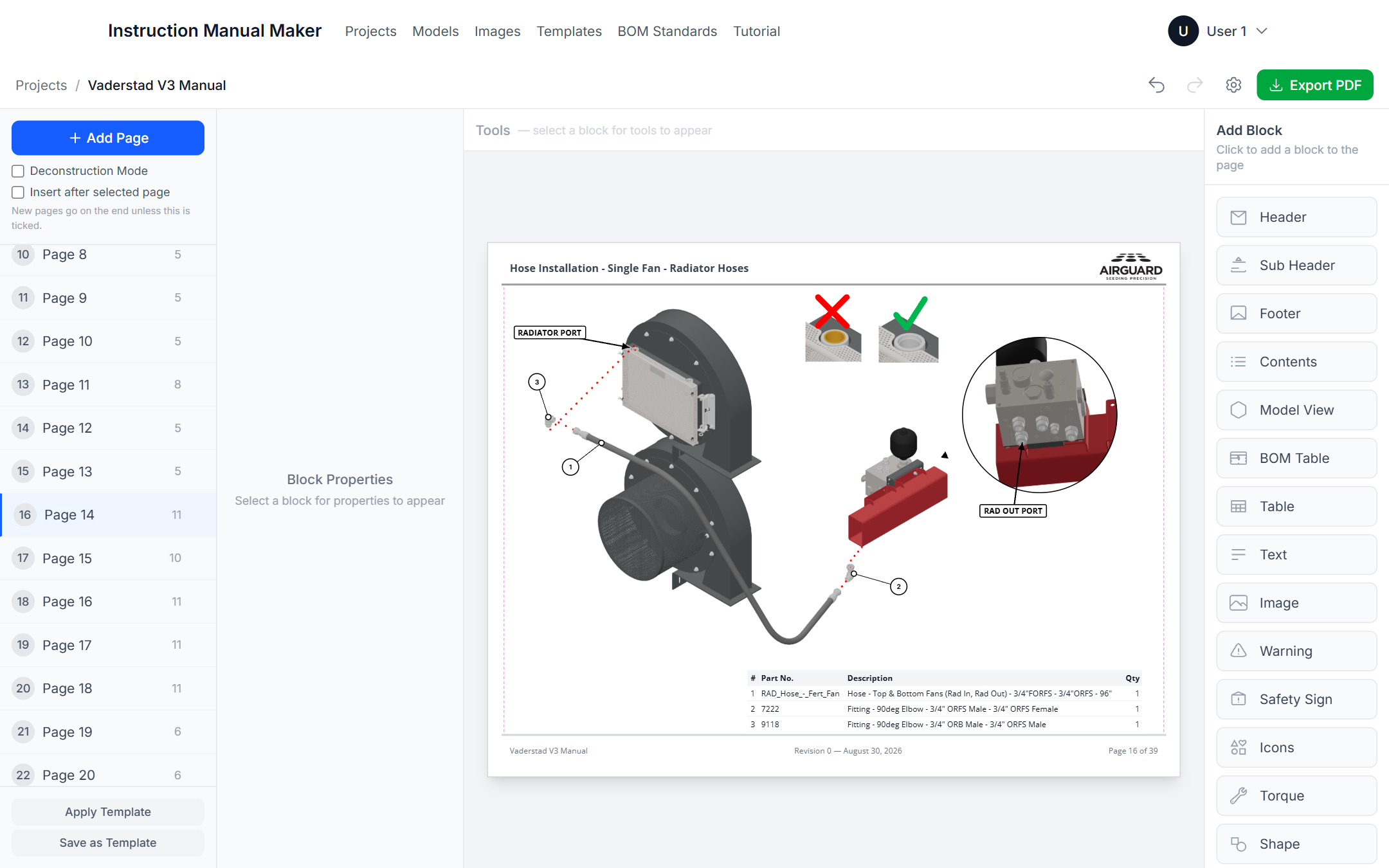
Four steps from assembly to manual
The add-in does the exporting, the app does the layout. Nothing is redrawn by hand.
Install the add-in
The desktop app carries the SolidWorks add-in installer. One click on the Models page installs it.
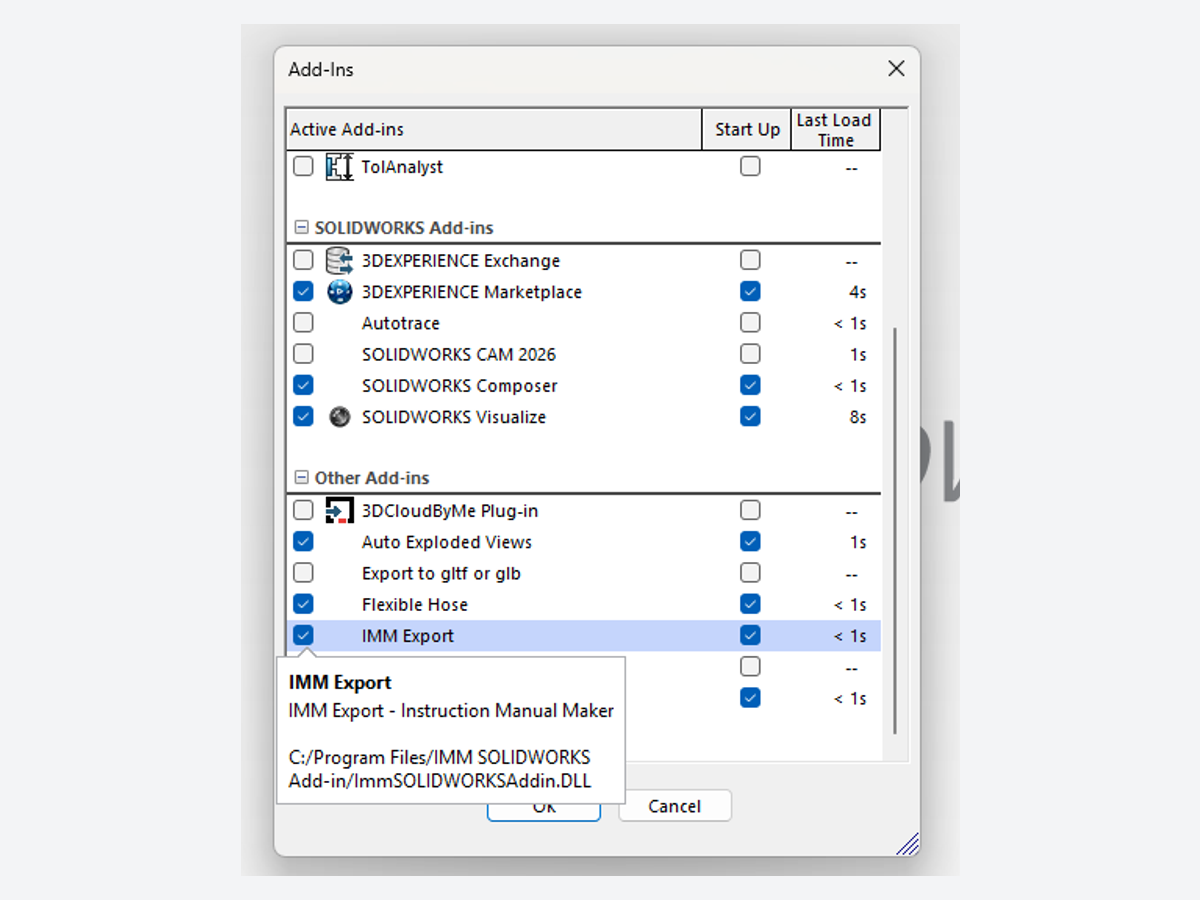
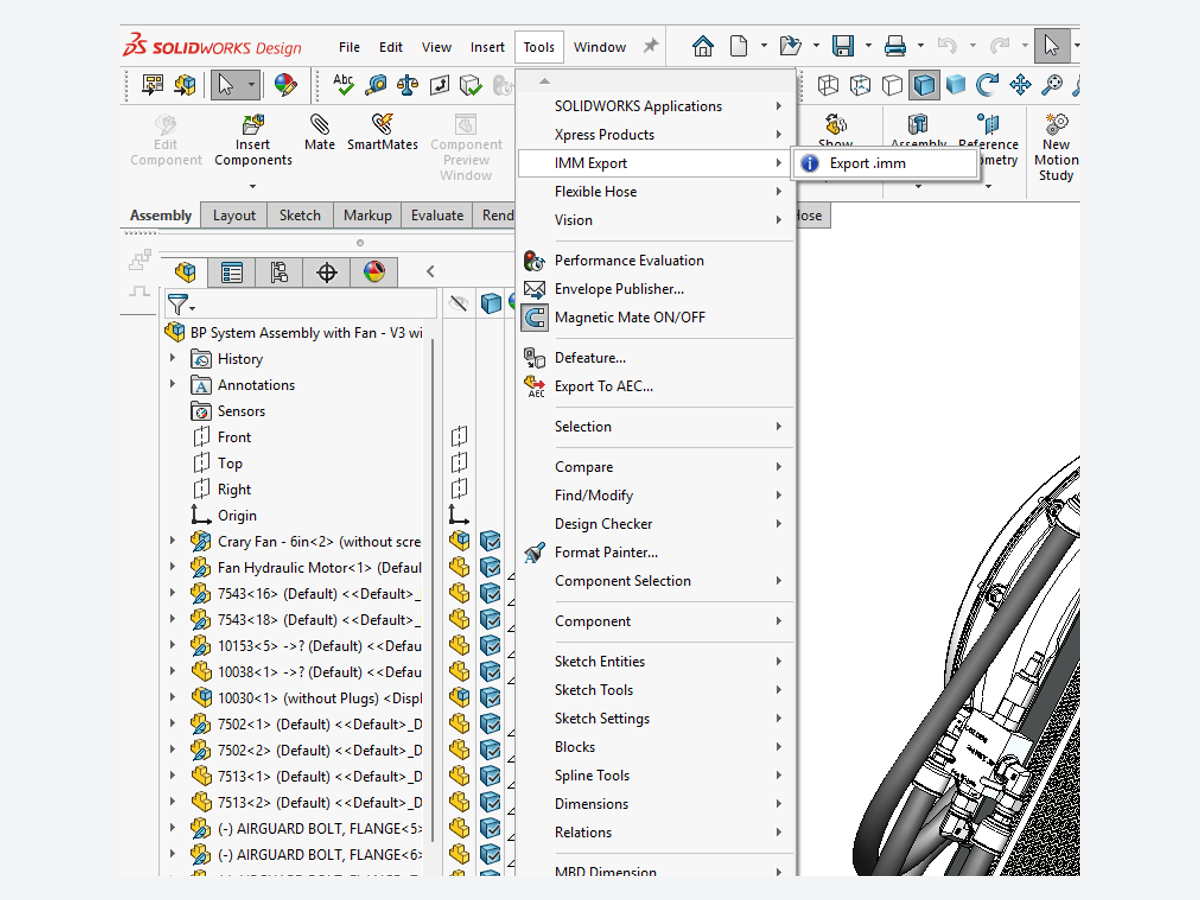
Export from SolidWorks
Tools › IMM Export › Export .imm writes one file with the geometry, part properties, configurations, exploded views and appearances.
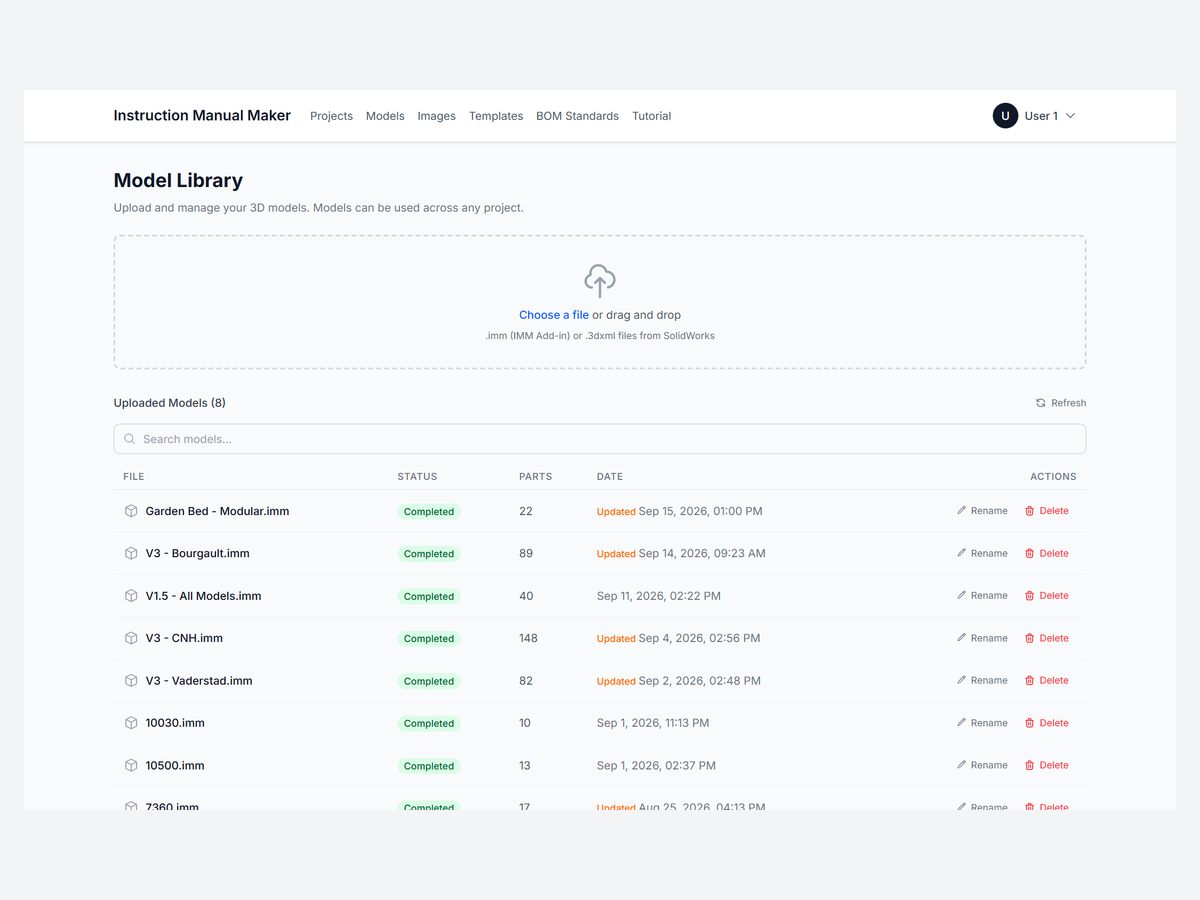
Import the model
Drop the .imm into the model library. Re-export after a design change and the model updates in place; your views stay put.
Build the pages
Place model views, BOM tables, text, images and safety blocks on pages made from your templates. Export a PDF, a video or an interactive web page.
The model view is the manual
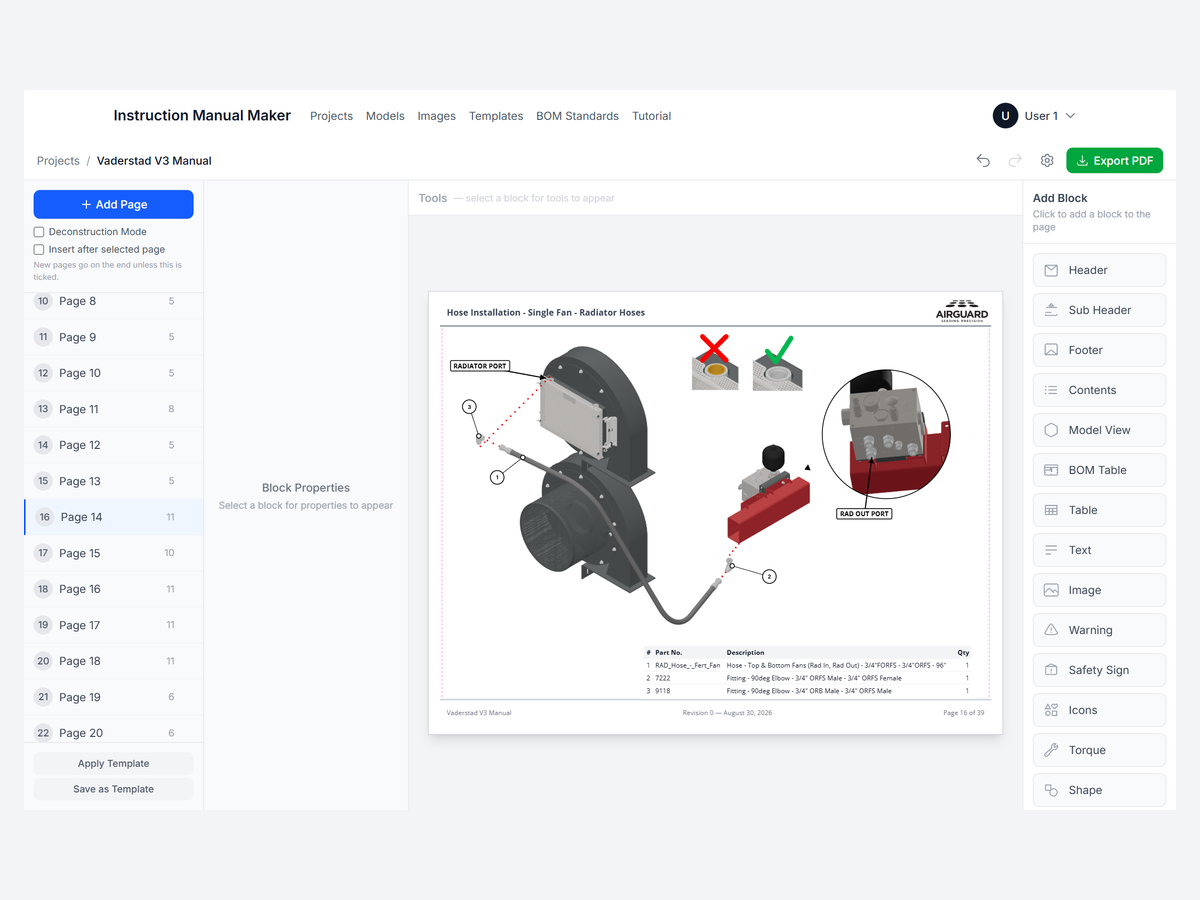
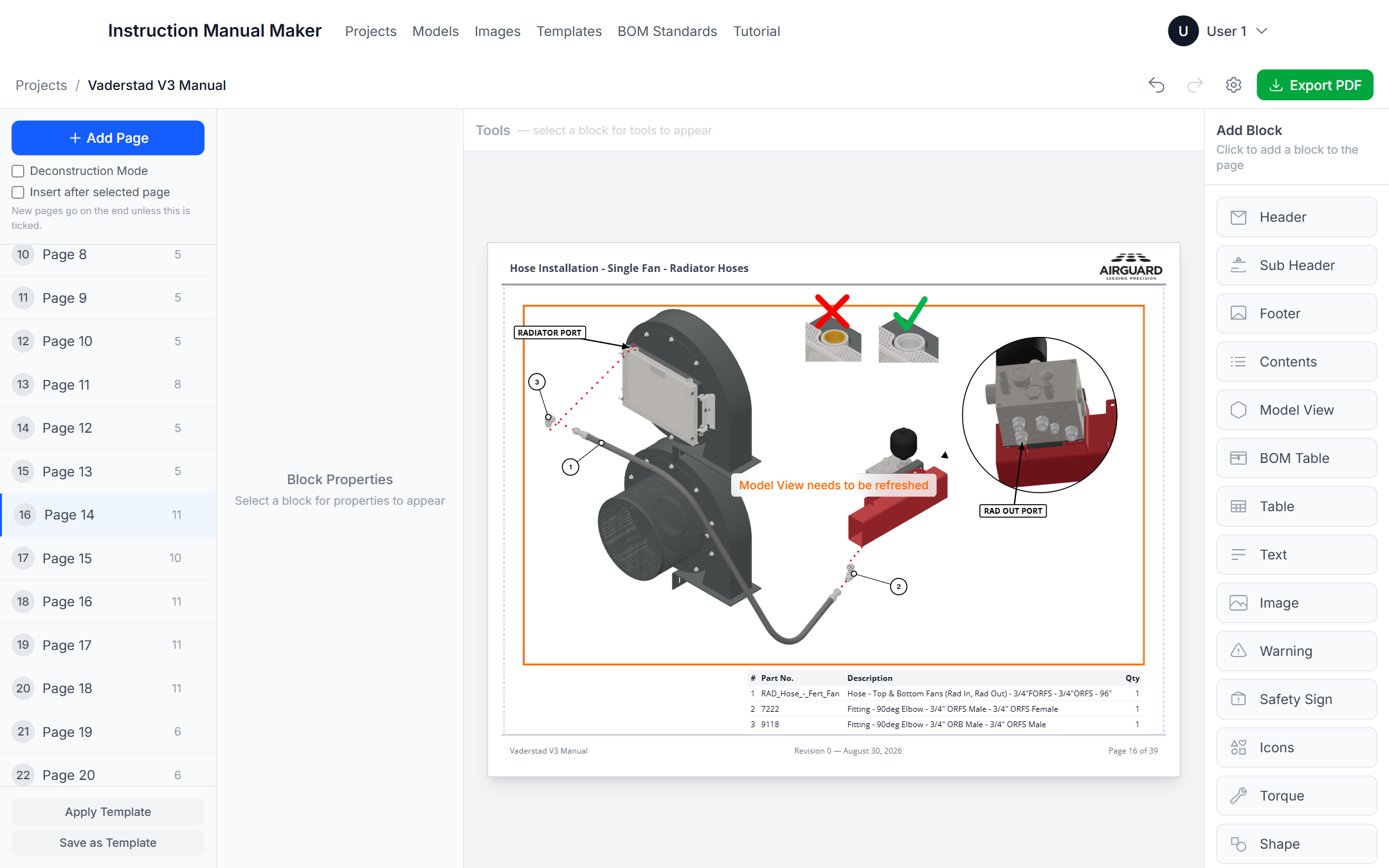
Every picture in the manual is a live view of the model. Turn it, explode it, balloon it, and capture.
Views that come from the CAD, not from screenshots
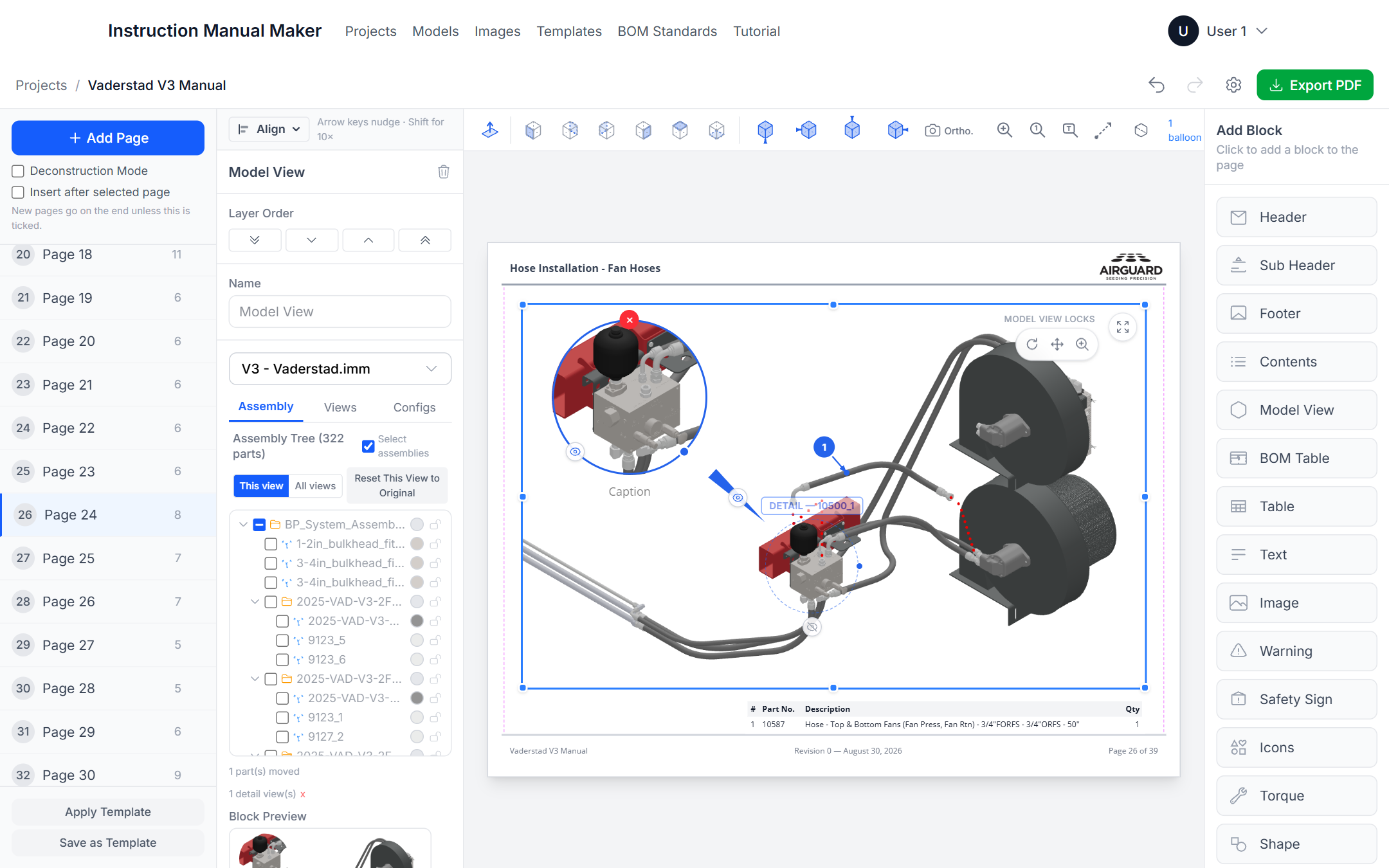
Orbit the assembly with SolidWorks' own mouse controls, apply its exploded views and configurations, hide parts, and add balloons, text callouts, detail circles, section cuts and explode lines.
- Standard and isometric views, perspective or orthographic
- Balloons numbered to match the BOM
- Detail views that magnify a region on the page
- Section view with a movable cut plane
A bill of materials that follows the balloons
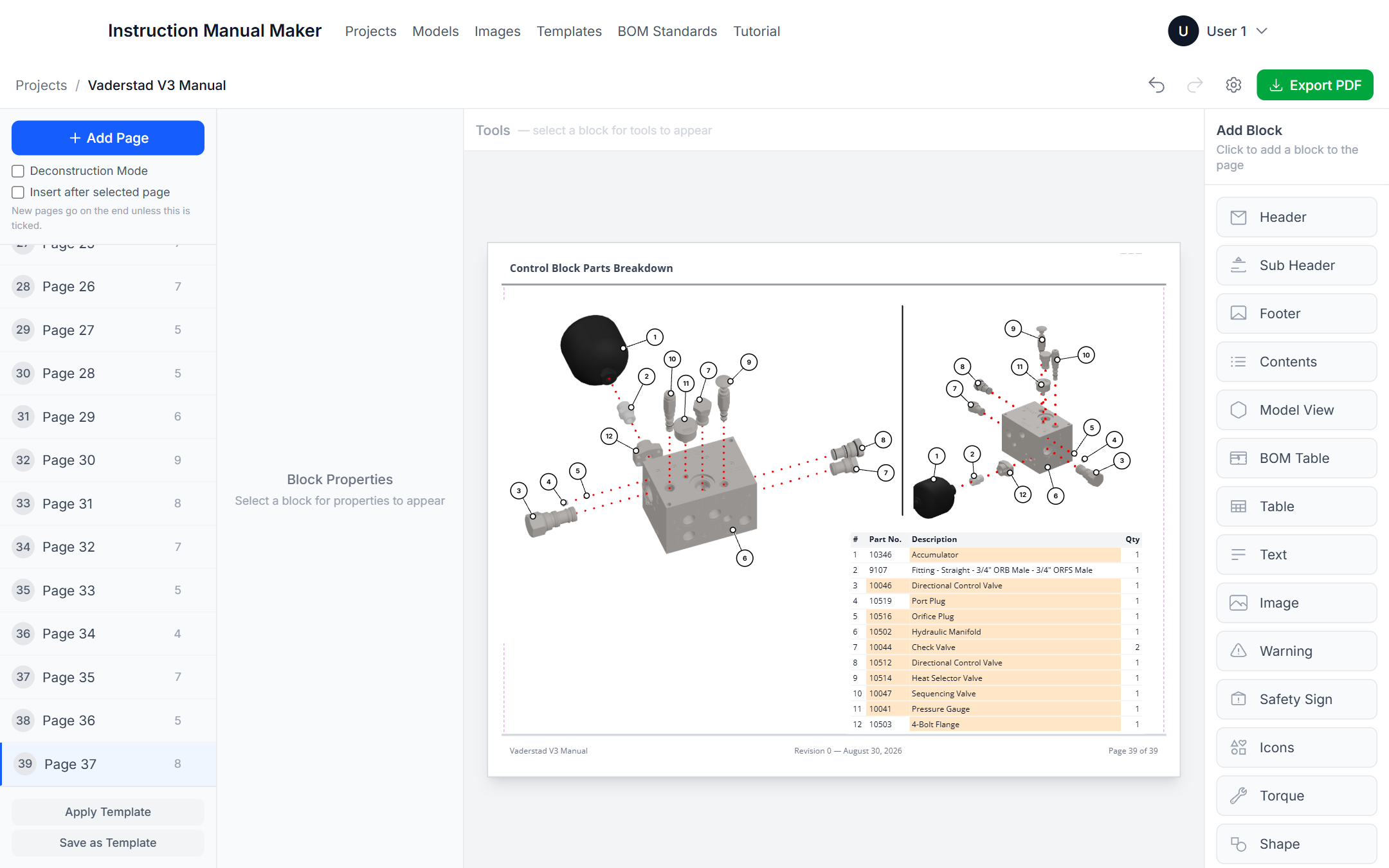
Link a BOM table to a model view and it lists what the view shows, numbered to match. Drag a row to renumber and the balloons renumber with it. Descriptions written once are reused in every manual.
- Part number, description, material, weight, quantity and custom properties
- Only ballooned parts, or the whole assembly
- Company-wide BOM standards, shared through the data folder
Layout tools you already know
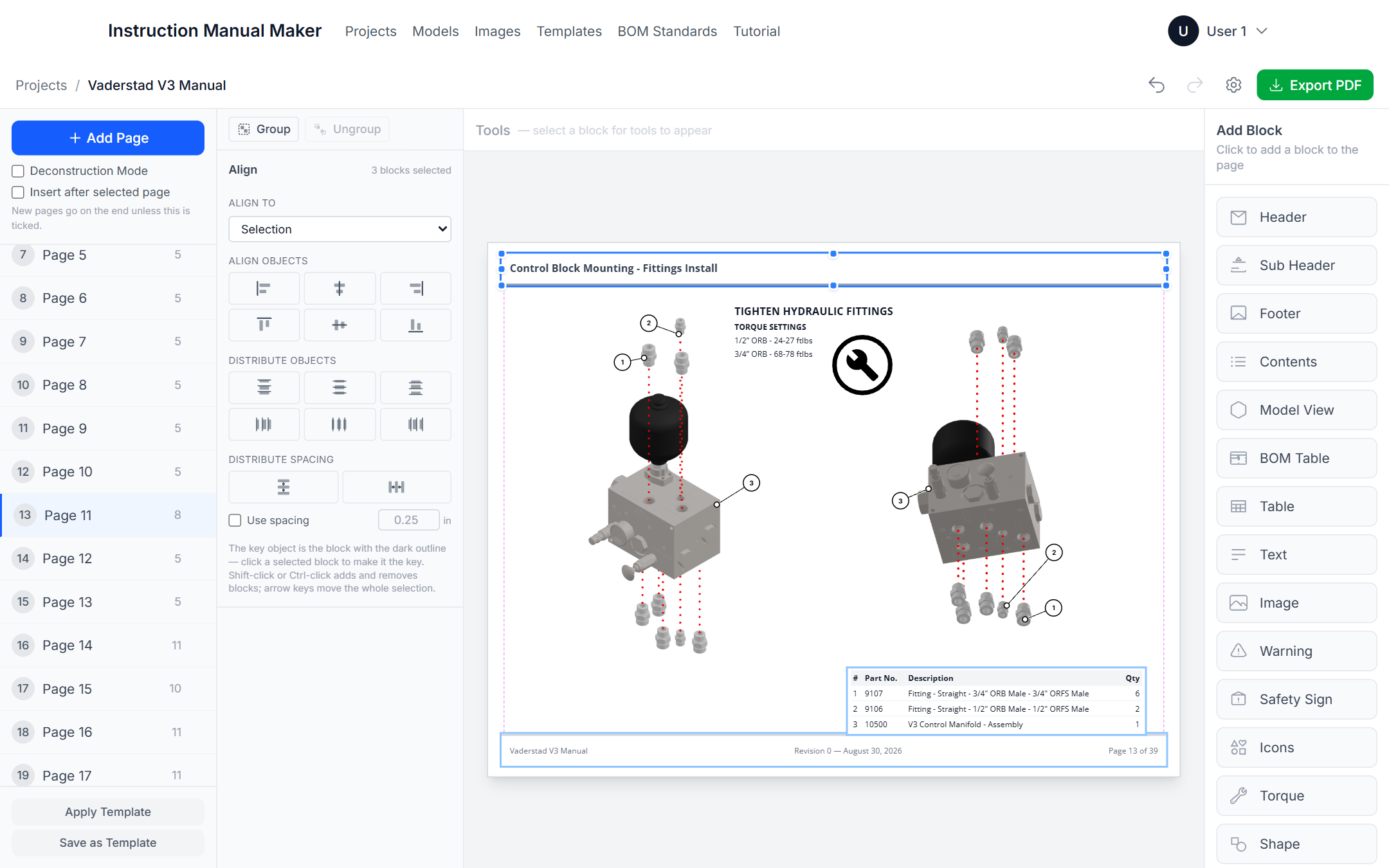
Blocks snap to page margins, align and distribute the way other graphic design software does, and group so a picture and its caption move as one. Arrow keys nudge. Templates fix the header, footer and logo on every page.
- Align to selection, key object, margins or page
- Distribute objects and spacing, with exact gaps
- Groups, copy and paste across pages, undo everywhere
Updating manuals made easy
The manual is tied to the model, not to pictures of it. When the assembly changes, export it again and the manual catches up.
- Export again. Run Tools › IMM Export in SolidWorks on the revised assembly, with the same file name as before.
- Drop it into the library. The model updates in place. Every project that uses it, and every view on every page, still points at it.
- Refresh the views. Each model view of that assembly is outlined and marked as needing a refresh. Select it and click Update View. Balloons, callouts, detail views and the linked BOM follow the new geometry and part properties.
No re-drawing, no re-ballooning, and nothing to hunt for: the page tells you which views to touch.
One manual, three ways to hand it over
The same pages go out as a print-ready PDF, a video, or an interactive web page. Each export is a single file that you keep and send however you like.
Every page rendered with the same fonts and the same vector text, with a clickable table of contents. A reduced-size option shrinks the file for email while logos stay crisp. Exploded views can collapse as an animation that plays in Adobe Acrobat.
Video
The whole manual as a 1080p MP4. Each page holds for a few seconds, then its exploded views collapse into place. Play it on a screen in the shop, put it on your website, or send it to the customer with the product.
Interactive web page
One self-contained HTML file: the pages, the animations, a contents list and auto play, in your brand colours. It opens in any browser from a USB stick, a shared drive or your own website. No server, no plugin.
The web page, up close
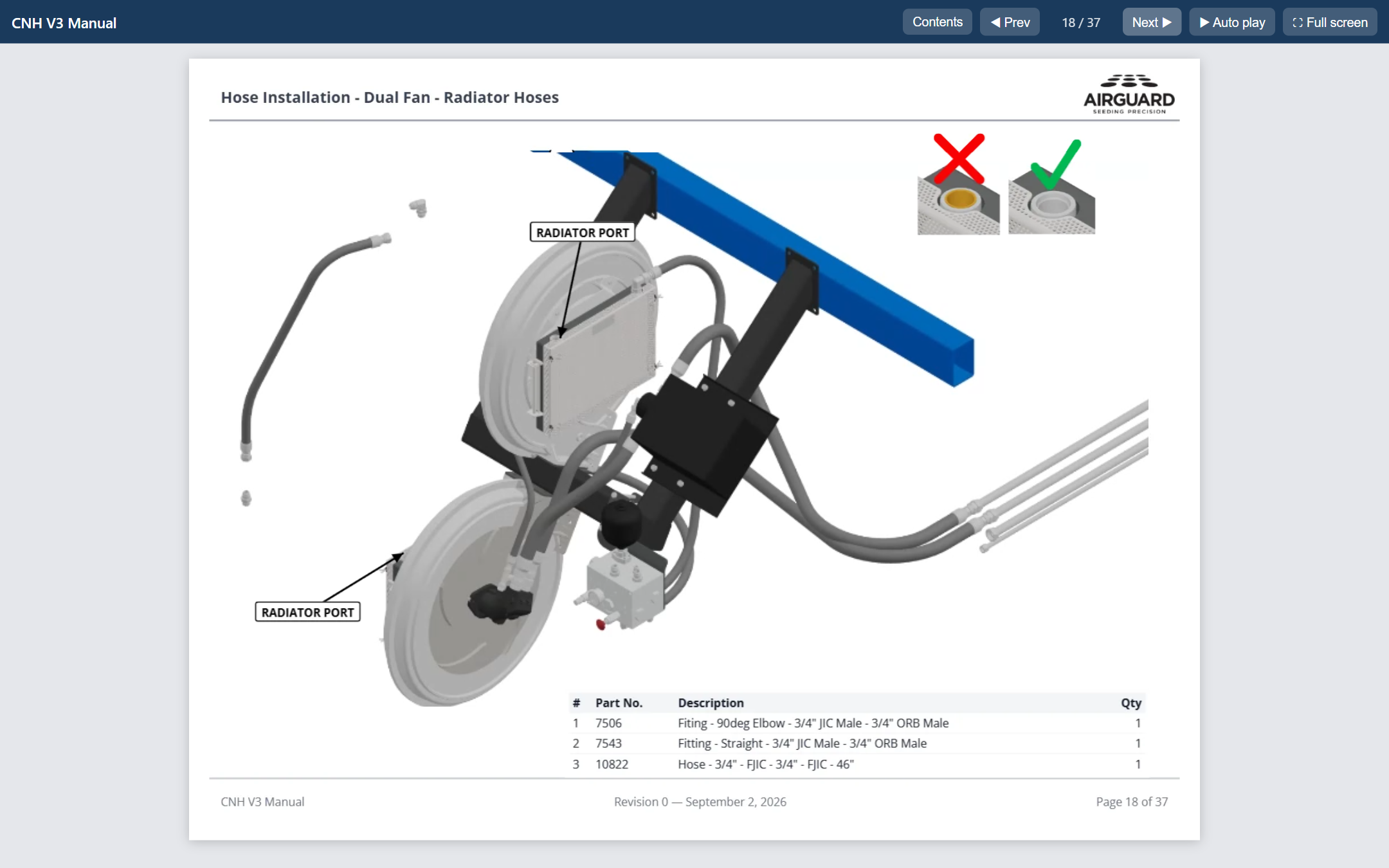
Page 18 of a customer's manual, opened as the interactive web page. The reader sees the printed page first, then the exploded hoses travel into their ports. Here they are half way there.
- Contents, Next and Prev, arrow keys and swipe on a phone
- Auto play turns the pages and plays each animation in turn
- Full screen on a tablet or phone, with a slim side bar in landscape
- Pages and clips are compressed to stay under the file size you set
We never hold your models or your manuals
Online manual builders keep your CAD models and finished manuals on their servers and hand your customers a link that depends on them. Instruction Manual Maker runs on your own PC, and everything it makes is an ordinary file in a folder you choose.
CAD data stays on your network
Models, projects, templates and images live in your data folder, on your disk or your company's drive. The app contacts us only to sign you in and check your subscription.
Files, not links
Exports are plain PDF, MP4 and HTML files. Email them, publish them on your own site, archive them with the product record. They never expire and never point back to us.
Nothing for your customers to sign up to
They open a PDF, play a video or open a web page. No account, no app to install, and no server that has to be up for the manual to work.
Yours to keep
Every manual you export opens without the app, and your data folder is yours whatever happens to your subscription. Back it up, move it, or hand it to a colleague.
And the rest of the manual
Safety and warning blocks
ISO 7010 symbols, signal-word panels (DANGER, WARNING, CAUTION, NOTICE), tool icons and torque specs in ft-lbs and Nm.
Templates
Title page, contents, body and last page layouts with your header, footer and logo. Every new page starts right.
Table of contents
Built from your section headings with page numbers, and it updates itself as pages move.
Exploded views that animate
Any model view can record its exploded view collapsing. The clip plays in the video, in the web page, and in Acrobat from the PDF.
Works offline, shares on a network
Everything lives on your PC. Point the data folder at a network drive to share models, images, templates and projects with colleagues, with check-out and check-in.
Backups without thinking
Projects back themselves up while you work, at check-in and when the app closes. Restore any of them.
Simple pricing, 30 days free
Try it free for 30 days with just an email address, no card. Then one subscription covers the desktop app and the SolidWorks add-in, on up to two computers. Cancel any time.
Start your free trial No card. Nothing to cancel.
Subscriptions open shortly. Start with the free trial; we will email you when checkout is ready.
Monthly
- Desktop app for Windows
- SolidWorks add-in
- Use on up to 2 computers
- All updates included
Yearly
- Everything in Monthly
- Billed once a year
- Use on up to 2 computers
- All updates included
Prices in US dollars before tax. Checkout, invoicing and refunds are handled by Paddle.com, our merchant of record; tax is added at checkout where it applies. See our refund policy and terms. Subscribing after a trial keeps everything you made. New here? Start with the free trial above; the app asks you to subscribe when it ends.
Questions before you buy
Do I need a card for the trial?
No. The trial starts with an email address. You set a password, install the app and sign in; it works for 30 days on up to two computers. If you do nothing it simply ends, and everything you made stays where it is for when you subscribe.
What do I need to run it?
A Windows 10 or 11 PC (64-bit) for the app, and SolidWorks 2020 or later on the machine you export from. They can be the same PC or different ones. The app keeps its own database and needs no server.
How does the SolidWorks add-in get installed?
It ships inside the desktop app. On the Models page, click Install SolidWorks add-in, approve the Windows prompt, and it appears in SolidWorks under Tools › IMM Export.
What is in a .imm file?
The assembly's geometry plus its structure and part properties (part numbers, descriptions, materials, weights, custom properties), its configurations with suppressed parts, its exploded views and explode lines, display states and appearances. Everything the manual needs, in one file.
Where are my models and manuals stored?
In a data folder you choose, on your PC or a network drive, as ordinary files, and in a database the app keeps on your PC. We never receive your models, projects or exported manuals. The only things the app sends us are your sign-in and a subscription check.
How do my customers view a manual?
However you choose to give it to them. Export a PDF, a video (MP4) or an interactive web page (a single HTML file), then email it, put it on your website or ship it with the product. They need no account, no app and no connection to us, because we host nothing.
What happens when the design changes?
Export the assembly again with the same file name. The model updates in place, your captured views are flagged as needing a refresh, and the BOMs follow the new data.
How many computers can I use it on?
Two per subscription. Sign in on each one. To move to a new PC, sign out on an old one first.
Does it need an internet connection?
Only to sign in and to check your subscription about once a day when it can. It keeps working offline for up to 30 days between checks.
How do I cancel?
From the receipt email or the link Paddle, our payment partner, sends with each invoice, at any time. The app keeps working until the end of the period you have paid for.
Can my team share manuals?
Yes. Point everyone's data folder at the same network location. Models, images, templates and BOM standards are shared, and projects are checked out and in so two people never edit the same one at once.